
Total: £0.00
Taxes and shipping calculated at checkout

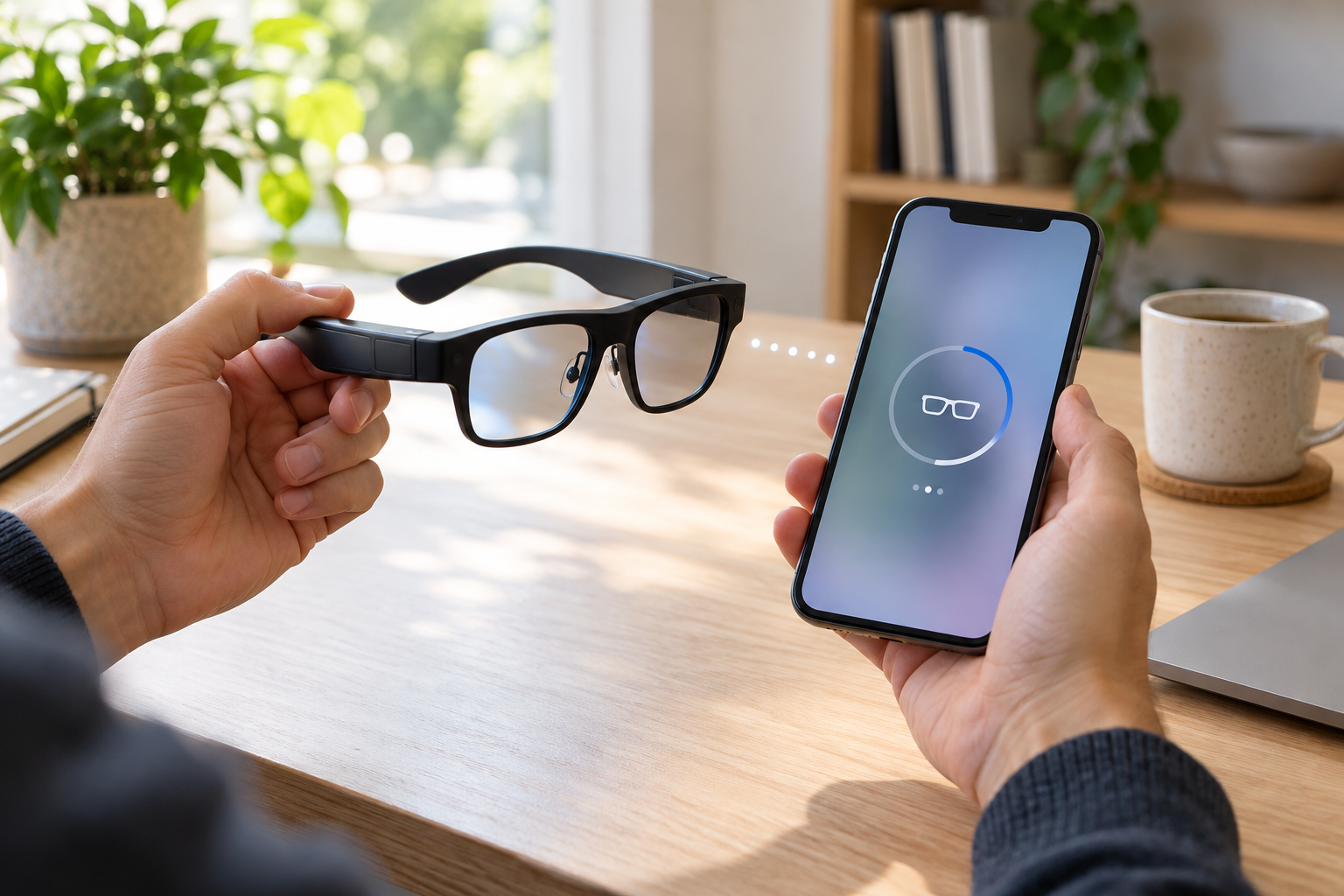
A reliable smart glasses app starts by separating audio pairing from camera transfer. Smart glasses may use one connection for calls and music and another for transferring camera files. Getting audio working therefore does not prove that the camera is connected to its app. For a smooth smart glasses app experience, use the manual supplied with your exact model for button sequences, charging requirements and app installation. The steps below organise the checks without assuming every model uses the same controls.

Enter the model's pairing mode as described in its manual, then use the phone's Bluetooth settings or the specified app workflow. Play a short audio clip at a moderate volume. Check the selected audio output if sound still comes from the phone. For a test call, ask the other person whether the microphone is clear in a quiet room. If calls and listening are your main reason for buying, use our Bluetooth glasses buying guide to assess fit, leakage and call clarity.
If the glasses connect but remain silent, check media and call routing, phone volume and any separate volume controls. If the manual recommends forgetting and pairing again, do that before attempting a reset. A reset may remove settings or stored data.

Make one short, non-sensitive recording, then open the camera-transfer function in the companion app. Some models require a temporary Wi-Fi connection or a local-network permission; others use a different method. Our frames, app and internet guide explains these separate jobs. Follow the model's instructions rather than assuming Bluetooth audio pairing will transfer the video.
If the phone says the glasses' Wi-Fi has no internet, that may describe a local transfer network. Follow the app instructions about remaining connected. Restore your normal network after the transfer. Do not change unrelated security settings just to make a file appear.

| Symptom | What to check first |
|---|---|
| No device appears | Power, pairing mode, distance and an existing connection to another phone. |
| Music works; videos do not appear | The camera app, documented transfer connection and required permissions. |
| A transfer stops partway | Available phone storage, battery levels and whether the phone left the transfer network. |
| A copied file will not play | Whether transfer finished and whether another compatible player opens the original file. |
| Calls sound poor | Audio routing, microphone position, wind and a second test in a quiet room. |
Open the copied file, play it to the end and check its sound. Keep a second copy of important footage before deleting anything from the glasses. Do not format storage or factory-reset as a first troubleshooting step; first check the manual and ask for support.
Send the product link, model identifier, phone model, operating-system version and app version. Describe the exact stage that fails and any error message. A screenshot of the connection screen is useful, but remove account details and private recordings. Contact SMC Traders if you need the model instructions.
Start with the model name on your order, the box and the supplied manual. A similar-looking frame is not enough to identify its app. Keep the order link available, especially if your packaging uses a manufacturer's model code different from the shop title. Send those details to support if you are unsure.
| Listing | What to check in its instructions | Do not assume |
|---|---|---|
| GS5 | Companion app, controls, cable and any included accessories. | GS5 Max specifications apply to GS5. |
| S2 MAX | Audio pairing, camera-transfer workflow and supported translation service. | Audio pairing alone imports photos. |
| M88 | App requirements, lens details, recording controls and care instructions. | Sunglasses styling means waterproofing or a particular UV rating. |
Therefore, a careful smart glasses app setup relies on the supplied manual. Exact app names, button timings and firmware screens have not been confirmed for every supplied version. This guide therefore does not invent a universal app or button sequence. Use the manual supplied with your specific unit; ask us for the correct instructions if it is missing.
Check the supplied cable and charging contacts against the manual. Remove any protective material only where the instructions tell you to. Make sure contacts are dry and unobstructed, and avoid forcing a connector into place. Follow the specified charging method rather than choosing equipment based only on how the connector looks.
Observe the documented charging indication. If nothing happens, check the cable connection and an appropriate power source before making repeated attempts. Stop using damaged equipment. Do not guess that a light colour means fully charged, because indicators differ between models.
For the manual's Bluetooth audio step, use the iPhone's Bluetooth settings and select the documented device name. Keep the glasses nearby and make sure another phone is not already using the connection. Test a short piece of audio at a comfortable volume; then check a call's audio route.
Install only the companion app identified by the supplied instructions from the official App Store. Check the developer and phone requirements. When the app requests access, read what each permission enables. Bluetooth or local-network access may relate to connecting or transferring files; photo-library access may relate to saving footage. Grant the permissions documented for the task rather than every permission by default.
If the app cannot find the glasses, check its connection screen and the relevant permissions in iPhone settings. Do not assume the device name seen in system Bluetooth is the same entry used for camera transfer.
Use Android's Bluetooth settings for the audio connection where the manual specifies that method. Android settings and labels vary by version and phone maker. Confirm the documented device name, then test music and calling before moving to camera transfer.
Install the identified app from the official store where available. On supported versions, nearby-device permissions can affect discovery; the app may also document other requirements. If a feature fails, review the permissions for that feature and your phone's prompts. Avoid installing an unrelated app simply because it contains “smart glasses” in its name.
Keep the transfer app open during the first short test. Check any phone message about switching away from a Wi-Fi network without internet, because a documented local transfer network may not provide internet access.
If a recording is missing, do not immediately reset the device. Check that recording finished, that the app is showing the correct device and that there is room on the phone. A sample failure is useful information for support; preserve the original and write down the error.
First establish whether the app requires an account, an internet connection, a supported language or a separate service. Camera recording and Bluetooth music working does not prove an online AI feature is ready. Check the app's own service status and instructions. Do not enter payment details or buy a subscription to troubleshoot unless you understand that service's terms.
For translation, try a short ordinary sentence in a supported language pair. Confirm numbers and names separately. Our translation checklist explains what to test before travel.
Next, after setup, browse the smart glasses collection to compare the current models and their documented app, audio and camera features.
